
Connect Microsoft Entra ID
Keel reads your Microsoft Entra ID tenant once a day through Microsoft Graph and checks:
- MFA registration coverage
- Global administrator footprint
- Conditional Access policies present
It needs four Microsoft Graph application permissions, all read-only:
Reports.Read.All, Directory.Read.All, RoleManagement.Read.Directory and Policy.Read.All.
Microsoft 365 security checks (Maester) are a separate connection. See Microsoft 365 security checks.
Time: about 2 minutes with one-click connect, 10 with your own app registration.
Before you start
Section titled “Before you start”- In Microsoft Entra: you are a Global Administrator or Privileged Role Administrator. Only those roles can grant Microsoft Graph application permissions.
- In Keel: you are an owner or admin of the workspace.
Option A: One-click connect
Section titled “Option A: One-click connect”- In Keel, open Integrations, find the Microsoft Entra ID card and click Connect.
- On the Settings tab, click Connect with Microsoft.
- Sign in with your administrator account.
- Microsoft lists the four read-only permissions. Click Accept.
Microsoft sends you back to Keel, which shows Evidence connector connected. Its credential is stored encrypted.
If Keel shows Microsoft is still applying the consent. Wait a minute, then choose Connect with Microsoft again., do exactly that. Consent can take a minute to reach every Microsoft server.
Option B: Register your own app
Section titled “Option B: Register your own app”Register the app
Section titled “Register the app”-
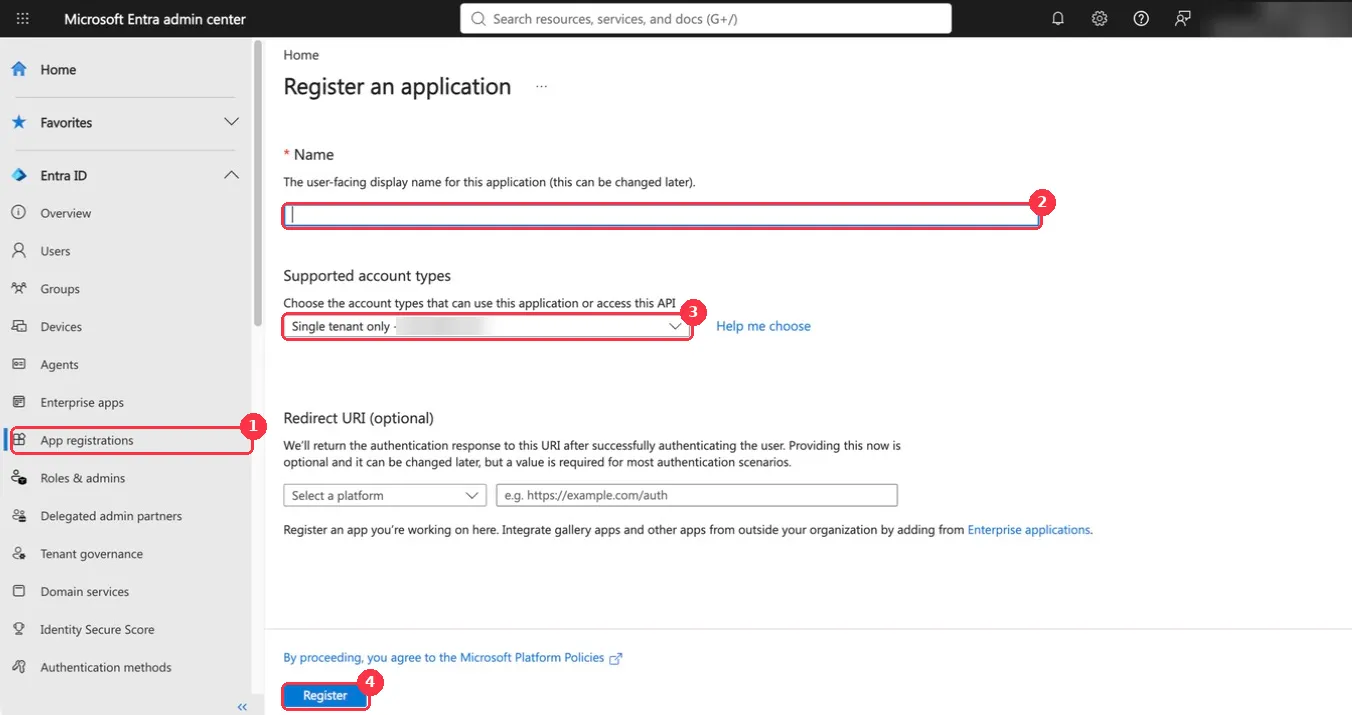
Sign in to the Microsoft Entra admin center.
-
Go to Entra ID > App registrations.
-
Click New registration.
-
Name:
Keel evidence (read-only). -
Supported account types: Single tenant only (your tenant).
-
Leave Redirect URI empty and click Register.
-
On the app’s Overview page, copy two values:
- Application (client) ID
- Directory (tenant) ID
Grant the permissions
Section titled “Grant the permissions”- In the app’s left menu, click API permissions.
- Click Add a permission > Microsoft Graph > Application permissions.
- Search for and tick each of these, then click Add permissions:
Reports.Read.AllDirectory.Read.AllRoleManagement.Read.DirectoryPolicy.Read.All
- If the list also shows the delegated
User.Readthat Microsoft adds by default, you can leave it or remove it. Keel does not use it. - Click Grant admin consent for your organization, then Yes. Each of the four rows should show a green check under Status.
Create a client secret
Section titled “Create a client secret”- In the app’s left menu, click Certificates & secrets.
- On the Client secrets tab, click New client secret.
- Description:
Keel. Expires: pick a period your team will rotate by. - Click Add, then copy the Value column right away. Microsoft hides it once you leave the page. Do not copy the Secret ID; Keel needs the value.
Connect it in Keel
Section titled “Connect it in Keel”For Option B only.
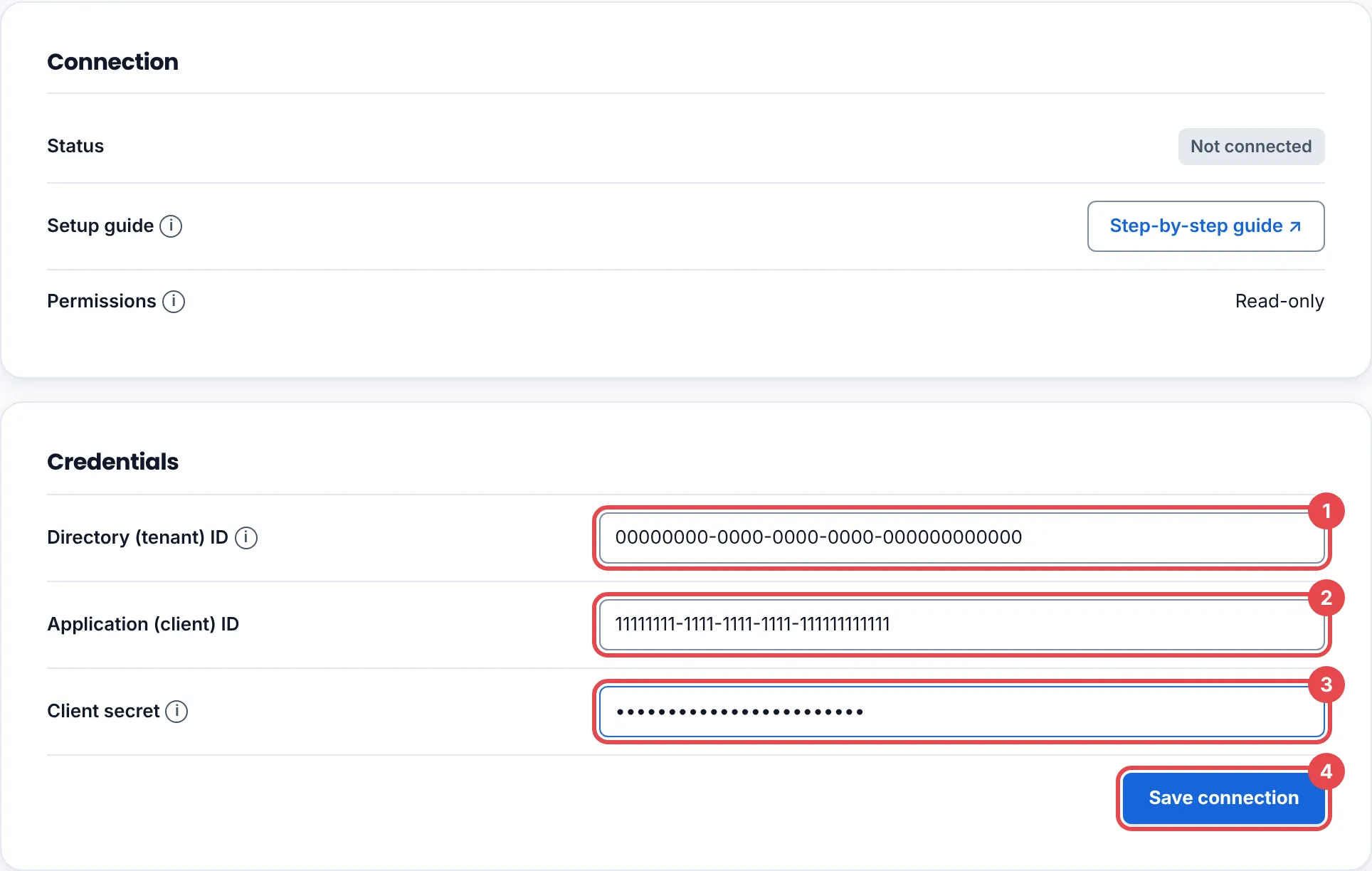
- In Keel, open Integrations, find the Microsoft Entra ID card and click Connect.
- Under Or use your own app registration (or Credentials), fill in:
- Directory (tenant) ID: the GUID from the Overview page, for example
00000000-0000-0000-0000-000000000000. A domain name such asacme.comis refused. - Application (client) ID: from the Overview page.
- Client secret: the secret Value.
- Directory (tenant) ID: the GUID from the Overview page, for example
- Click Save connection.
See the first findings
Section titled “See the first findings”Open the Findings tab and click Collect now, or wait for the next daily run.
Troubleshooting
Section titled “Troubleshooting”| What you see | What to do |
|---|---|
| Use the tenant ID (a GUID) from the Microsoft Entra admin center Overview page, not a domain name. Nothing was saved. | Copy Directory (tenant) ID from the app’s Overview page. |
| Check the connection details and try again. | The client ID or secret is wrong, or admin consent was not granted. Check that all four permissions show a green check under Status, and that you pasted the secret Value, not its ID. |
| Only a GitHub organization owner, or an Entra Global Administrator or Privileged Role Administrator, can connect this. | Ask a Global Administrator to click Connect with Microsoft. |
| The connection was cancelled or declined, so nothing was saved. | Someone clicked Cancel on Microsoft’s consent screen. Start again. |
| That source is already connected to another Keel workspace, so it was not connected here. | One tenant can be connected to one Keel workspace. Disconnect it there first. |
Rotate or remove access
Section titled “Rotate or remove access”- Own app: add a new client secret, disconnect and reconnect in Keel with it, then delete the old secret under Certificates & secrets. Microsoft secrets expire on the date you chose, and collection stops when they do.
- Remove: click Disconnect in Keel. Then, in the Entra admin center, delete the app from App registrations (own app) or from Enterprise apps (one-click connect).