

Connect GitHub
Keel reads your GitHub organization once a day and checks four things:
- Organization requires two-factor authentication
- Repository branches are protected (a rule or ruleset requires a pull request)
- Secret scanning is enabled
- No open critical or high Dependabot alerts
The member list also feeds system access reviews, and merged pull requests can be filed as change evidence.
There are two ways to connect. Use the GitHub App when the Settings tab shows Connect with GitHub. Use a token otherwise.
Time: about 3 minutes with the app, 5 with a token.
Before you start
Section titled “Before you start”- In GitHub: you are an owner of the organization. GitHub reports the two-factor requirement and organization-wide Dependabot alerts only to owners.
- In Keel: you are an owner or admin of the workspace.
Option A: Install the Keel GitHub App
Section titled “Option A: Install the Keel GitHub App”- In Keel, open Integrations, find the GitHub card and click Connect.
- On the Settings tab, click Connect with GitHub. The info icon beside it lists every permission the app asks for. All of them are read-only.
- GitHub asks where to install the app. Pick your organization, not your personal account.
- Choose All repositories, or Only select repositories and pick them.
- Click Install & Authorize.
GitHub sends you back to Keel, which shows Evidence connector connected. Its credential is stored encrypted.
If someone else has to approve installs in your organization, GitHub sends them the request and Keel shows An organization owner has to approve the GitHub install. Then choose Connect with GitHub again. Once they approve it, click Connect with GitHub again to finish.
Option B: Create a fine-grained access token
Section titled “Option B: Create a fine-grained access token”-
Sign in to GitHub as an organization owner.
-
Click your profile picture (top right) > Settings.
-
In the left sidebar, click Developer settings (at the bottom).
-
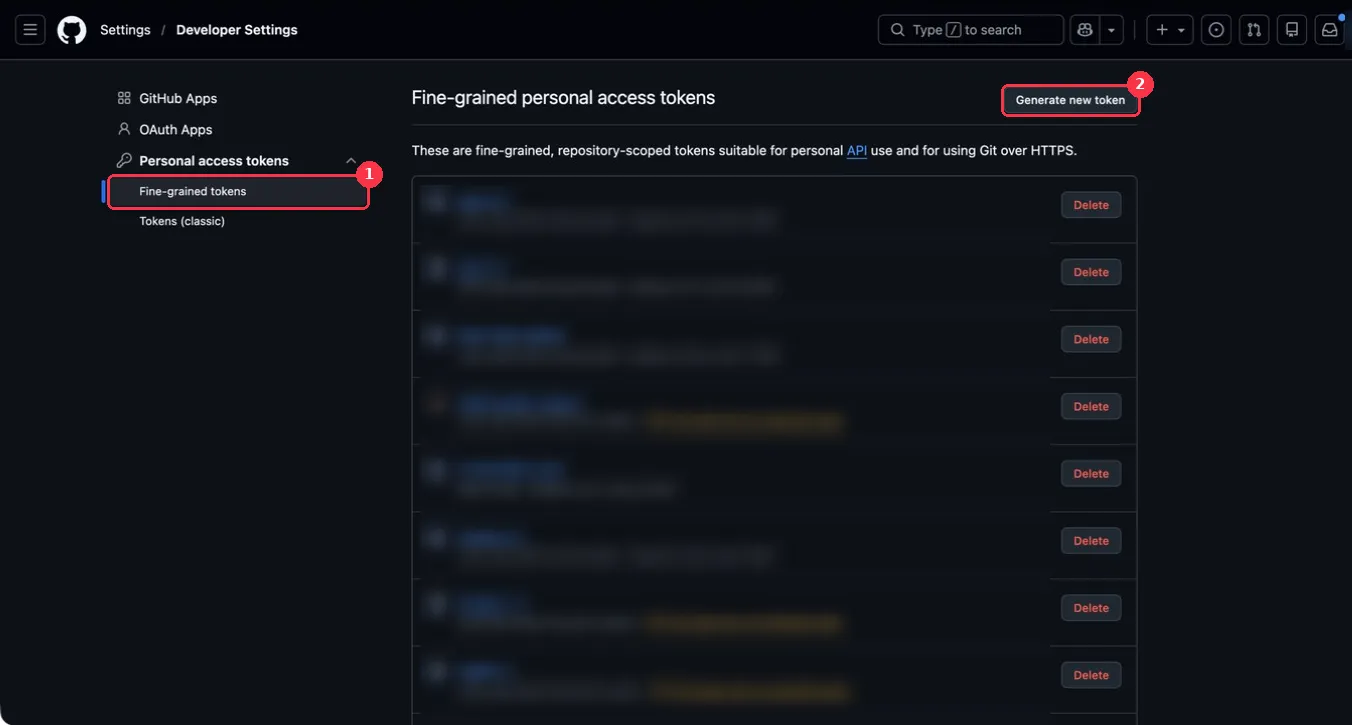
Under Personal access tokens, click Fine-grained tokens, then Generate new token.
Shortcut: github.com/settings/personal-access-tokens/new. GitHub may ask you to confirm with your passkey or password first.
-
Token name:
Keel evidence (read-only). -
Expiration: pick a date your team will rotate by. Keel stops collecting when it passes.
-
Resource owner: choose your organization. If it is missing, the organization blocks fine-grained tokens; an owner can allow them under the organization’s Settings > Personal access tokens.
-
Repository access: All repositories.
-
Under Permissions > Repository permissions, set each of these to Read-only:
Permission Why Keel needs it Contents Reads branch rules and rulesets Dependabot alerts Counts open critical and high alerts Pull requests Files merged pull requests as change evidence Checks Reads required checks on merged pull requests Commit statuses Reads commit statuses on merged pull requests Administration Reads classic branch protection rules. Skip it if every repository uses rulesets. Metadata turns on by itself as read-only.
-
Under Organization permissions, set Members to Read-only.
-
Click Generate token, then copy it. GitHub shows it only once.
If your organization requires approval for fine-grained tokens, the token stays pending until an owner approves it. A token created by an owner is approved automatically.
Then connect it in Keel, below.
Connect it in Keel
Section titled “Connect it in Keel”For Option B only. The app in Option A connects in one step.
- In Keel, open Integrations, find the GitHub card and click Connect.
- Under Or paste an access token (or Credentials), fill in:
- Organization login: the name in
github.com/<login>, for exampleacme-inc. - Fine-grained access token: the token you copied.
- Repositories to check (optional): leave blank to check every active repository on its
default branch, or list up to the limit shown, as
repoorrepo:branch, for exampleapi, web:release.
- Organization login: the name in
- Click Save connection.
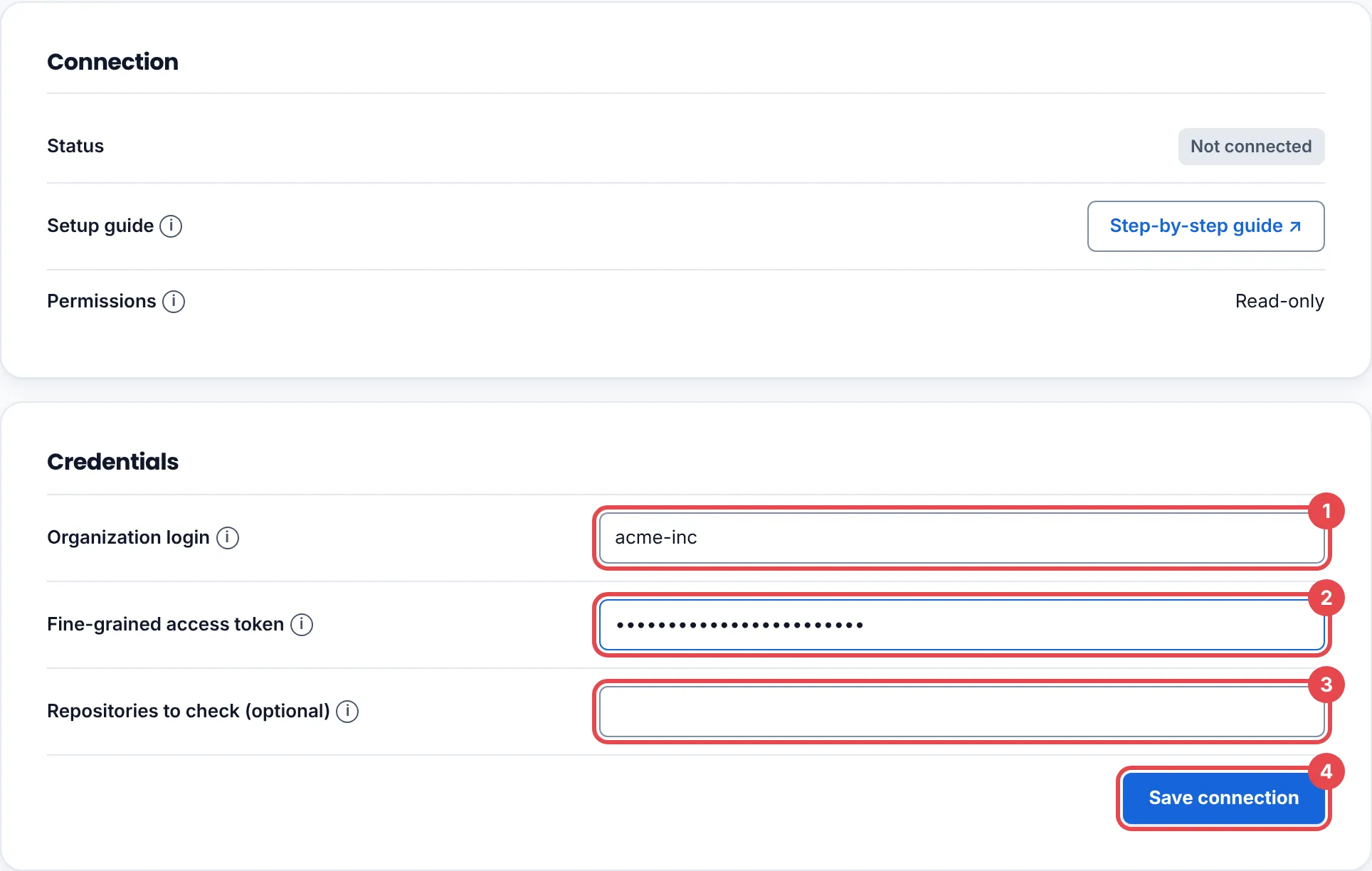
Evidence connector connected. Its credential is stored encrypted. means it worked. To change the repository list later, disconnect and connect again.
See the first findings
Section titled “See the first findings”Open the Findings tab and click Collect now, or wait for the next daily run. A check reads Not supported when GitHub only shares that signal with a role the token’s account does not hold. Its detail names the role; create the token from an owner account and reconnect.
Troubleshooting
Section titled “Troubleshooting”| What you see | What to do |
|---|---|
| Check the connection details and try again. | The organization login is wrong, the token was not copied whole, or the token’s resource owner is your personal account. Create the token again with your organization as resource owner. |
| Install the GitHub app on an organization, not a personal account. | Click Connect with GitHub again and pick the organization. |
| Only a GitHub organization owner … can connect this. | Ask an organization owner to connect, or to make you an owner. |
| That source is already connected to another Keel workspace, so it was not connected here. | One GitHub organization can be connected to one Keel workspace. Disconnect it there first. |
Rotate or remove access
Section titled “Rotate or remove access”- Token: create a new token, click Disconnect on Keel’s Settings tab, and connect again. Then delete the old token under Developer settings > Fine-grained tokens.
- App: click Disconnect in Keel. To remove the app from GitHub as well, open your organization’s Settings > GitHub Apps, click Configure next to Keel, and click Uninstall.