Connect Google Workspace
Keel reads your Google Workspace directory once a day and checks:
- 2-Step Verification enrollment coverage
- Super administrator footprint
It uses a Google Cloud service account with one scope,
https://www.googleapis.com/auth/admin.directory.user.readonly, granted through domain-wide
delegation. That scope can read the user directory and nothing else.
Time: about 15 minutes.
Before you start
Section titled “Before you start”- In Google Workspace: you are a super administrator.
- In Google Cloud: you can create a project, or you have one you can add a service account to.
- In Keel: you are an owner or admin of the workspace.
Turn on the Admin SDK API
Section titled “Turn on the Admin SDK API”- Open the Google Cloud console and pick a project from
the project menu at the top, or create one named
keel-evidence. - Go to Menu > APIs & Services > Library.
- Search for Admin SDK API, open it, and click Enable.
Create the service account and key
Section titled “Create the service account and key”- Go to Menu > IAM & Admin > Service Accounts.
- Click Create service account.
- Service account name:
keel-evidence. Click Create and continue. - Skip Permissions and Principals with access: they control Google Cloud resources, which Keel does not touch. Click Done.
- Click the new service account’s email address.
- Open the Keys tab, click Add key > Create new key, choose JSON, and click Create. Your browser downloads the key file. Google keeps no copy, so keep it safe until you paste it into Keel.
- Open the Details tab, click Show advanced settings, and under Domain-wide delegation copy the Client ID (a long number).
If Create new key is greyed out, your Google Cloud organization blocks service account keys
with the iam.disableServiceAccountKeyCreation policy. An organization policy administrator
can allow it for this one project.
Grant domain-wide delegation
Section titled “Grant domain-wide delegation”- Sign in to the Google Admin console as a super administrator.
- Go to Menu > Security > Access and data control > API controls.
- Under Domain wide delegation, click Manage Domain Wide Delegation.
- Click Add new.
- Client ID: paste the number you copied.
- OAuth scopes: paste exactly
https://www.googleapis.com/auth/admin.directory.user.readonly - Click Authorize.
Google says the change can take up to 24 hours. It usually applies within minutes.
Connect it in Keel
Section titled “Connect it in Keel”- In Keel, open Integrations, find the Google Workspace card and click Connect.
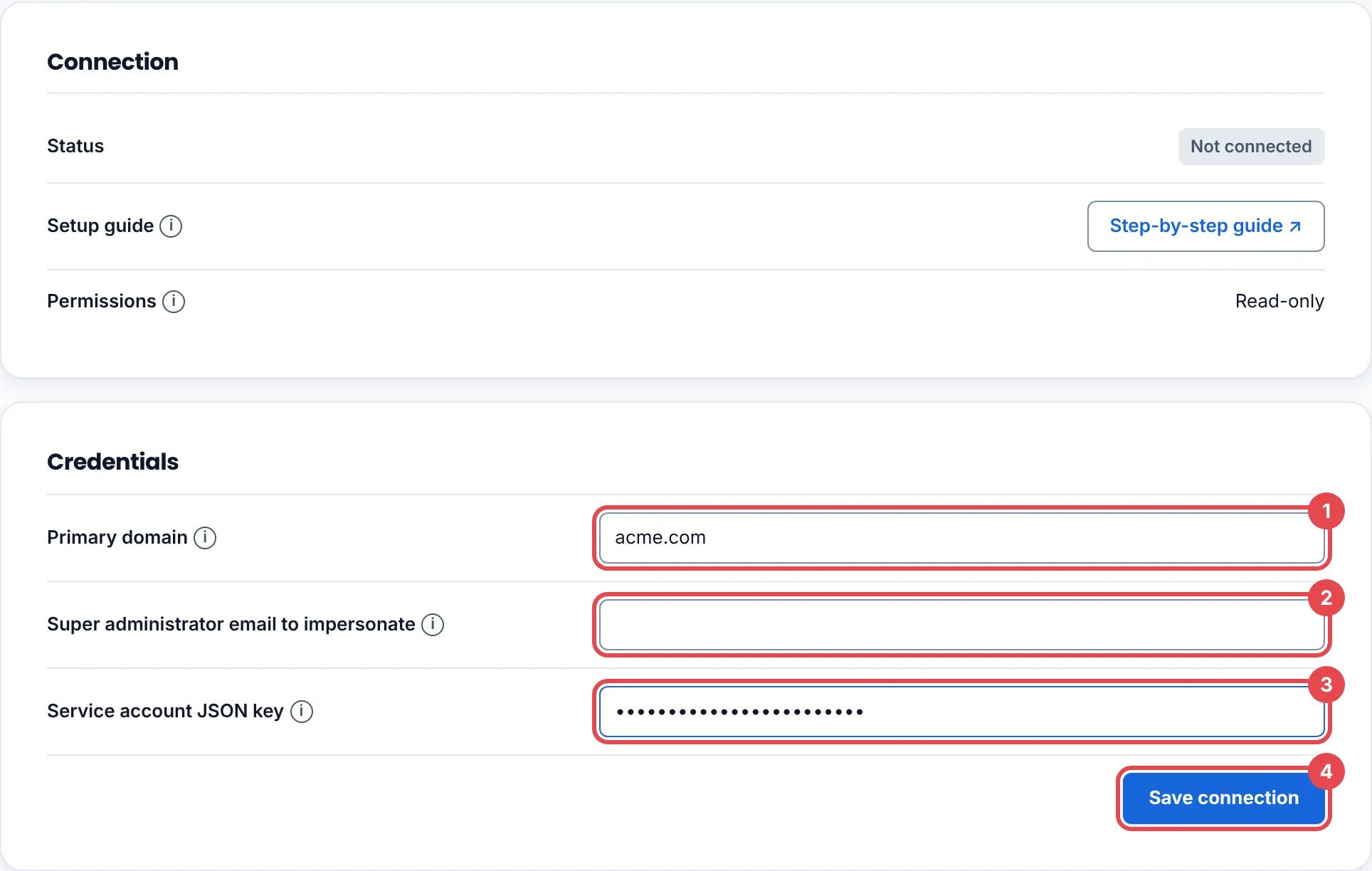
- Under Credentials, fill in:
- Primary domain: for example
acme.com. Keel reads every domain on the account. - Super administrator email to impersonate: a super administrator’s address. Delegation acts as this user, with the one read-only scope.
- Service account JSON key: open the downloaded file in a text editor and paste all of
it, from the first
{to the last}.
- Primary domain: for example
- Click Save connection.
Evidence connector connected. Its credential is stored encrypted. means it worked. Then delete the downloaded key file from your computer.
See the first findings
Section titled “See the first findings”Open the Findings tab and click Collect now, or wait for the next daily run.
Troubleshooting
Section titled “Troubleshooting”| What you see | What to do |
|---|---|
| Check the connection details and try again. | Most often, delegation has not applied yet; wait 15 minutes and try again. Otherwise check that the scope was pasted exactly, the Client ID matches the service account, the Admin SDK API is enabled, and the impersonated user is a super administrator. |
| That source is already connected to another Keel workspace, so it was not connected here. | One Google Workspace domain can be connected to one Keel workspace. Disconnect it there first. |
Rotate or remove access
Section titled “Rotate or remove access”- Rotate: create a new JSON key on the service account’s Keys tab, disconnect and reconnect in Keel, then delete the old key.
- Remove: click Disconnect in Keel. In the Admin console, delete the client under Manage Domain Wide Delegation. In Google Cloud, delete the service account.